Q. I keep getting the message, "Cannot connect to The Games Channel™ server." Why?
A. This means that your computer is not connected to the Internet properly. Please re-connect and try again. If you are sure you are connected, please contact your provider. Tell them you need a "32-bit Winsock". Some older systems may not have the proper files to connect to The Games Channel™, even though you can use any internet connection browser. Once you have the required 32-bit Winsock, then try to connect again.
Q. Why can’t I see my task bar when I am in The Games Channel™?
A. If you are using Microsoft Windows® 95 or 98 in 640 x 480 resolution, The Games Channel™ software will maximize to full screen (it fills the entire screen). To view the task bar and other applications, press the escape key. <ESC>. In all other resolutions, the software will be self contained within a window. To change your screen resolution, right click on the Windows® desktop. Click on PROPERTIES for the Display Properties menu. (See FIG 1.) Select SETTINGS and change the screen to a higher resolution.
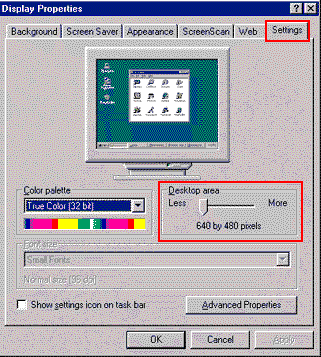
FIG 1 - Display Properties Menu
Q. How do I start The Games Channel™?
Start The Games Channel™ program or
-
Double-click The Games Channel™ icon on your desktop.
Q. How do I register on The Games Channel™? New users need to register to play games on The Games Channel™.
Please review the Code of Conduct and, if you agree to the terms, click "I AGREE" to continue.
Please provide your USER NAME and PASSWORD. Select a PASSWORD that you will remember. For security reasons we suggest you choose a password that is not the same as the one for your ISP.
If the USER NAME already exists on The Games Channel™, try another name. This will be your permanent name.
Please print the confirmation on your screen or save this information in a secure place.
A confirmation of your USER NAME and PASSWORD will be sent to your e-mail address.
Q. How do I play a game on The Games Channel™?Either select a game from the menu tree provided by clicking on the game and extending the tree options or select a game from the drop down category listing (eg: Classic Games.)
If you selected a multi-player game, you will be taken to a GAMES LOBBY where you will be able to see other players interested in the game chosen. Chat with the other players. To select an opponent, click on the INVITE button and choose a player from the list. An invitation will be sent to the chosen player and, on their acceptance, you will both be taken to the Gaming Board Interface. Once here, press PLAY to start the game. (4 players are required for some card games).
Once the connection has been established, you can play the game and chat with each other.
To return to the GAME LOBBY, click LOBBY. To return to the MAIN MENU, click EXIT to leave the game's lobby and then click the HOME button on the tool bar to get back to the menu tree listing.