|
 |
Q. How can I access The Games Channel? A. You must
Create a Profile , download and install the software before you can join. Click the link below to get the software. Click here to go to the Download page.
Q. Is this a free or pay site?
A. All Games Channel software is and will always be FREE* to users.
*excluding any local charges for ISP connection and telephone costs.
|
|
|
|
 |
|
Q. How do I start The Games Channel? A. You can start the program in two ways: Use the SHORTCUT found in the START button on the Windows® Desktop (Select "Programs" then "Games Channel"). or Double click The Games Channel icon on your desktop (note the original release did not put an icon here. If you want one, download and re-install the software again).
|
|
|
|
 |
|
How do I start a game? To start playing a game, follow these steps: Click on a game name to extend the tree and then choose the ENTER LOBBY option; 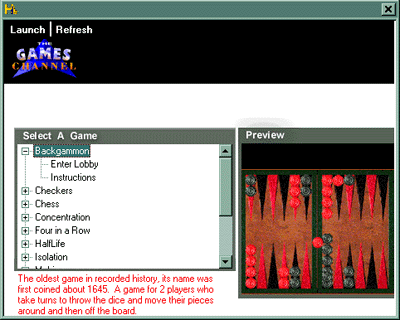
or Choose the category of game you wish to play (ie Classic Games) from the drop down menu GAME CATEGORIES. If you chose a single-player game, you will be taken straight to the Gaming Board Interface. If you chose a multi-player game, you will be taken to a Game Lobby where you will be able to meet other gamers interested in playing that particular game. Take the opportunity to have a chat with all the gamers before inviting a player (or players) to play with you. For information on how to play any of The Games, either click the HELP button located in the Game Lobby before the game begins or select the Instructions option from the menu tree. During game play, click RESIGN if you wish to end the game. The other player will be declared the winner if you choose to resign. To play the game again, click REPLAY. When the game is over, you can return to the Game Lobby by clicking the LOBBY button. From the Game Lobby, Click EXIT. Click on HOME on the tool bar to bring the menu tree into view.

|
|
|
|
 |
|
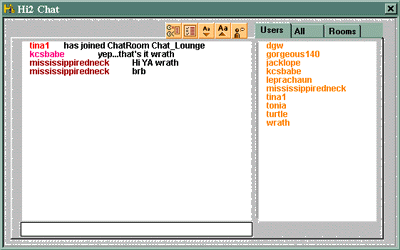
Q. What do the buttons on the top of the chat screen do?
A. The buttons on the chat screen allow you to access different chat views and options.
 |
Ignore User
Should you not wish to communicate with another player, for whatever reason, you may use the IGNORE function by clicking on this icon and selecting the name of the player you wish to ignore.
|
 |
Chat Options
You may change your options including the colour of the typeface in which your name and comments appear by clicking this icon and selecting your preference from the colours listed.
|

 |
Change Font Size
If you wish to change the size of the font used, clicking on these icons will either increase or decrease the font size shown.
|
 |
Whisper
If you wish to send a private message to another user in the lounge, click on this icon, select the user's name and then send your message text. To return to normal chat mode, click on the LOUD icon.
|
 |
Loud
When you are in WHISPER mode, clicking on the LOUD icon will return you to the default setting in the lounge. Any comments you subsequently make will be viewed by all users currently in the lounge.
|
|
|
|
|
 |
|
Q. Why do I have to do another install after I download and install the software?
A. The Games Channel software is unique. It downloads new content and updates as required, saving you time and effort downloading new files etc. Before you enter a Gaming Lobby, it will check that you have the latest version and perform the update automatically. When you first start the channel, it will download the menu graphics required. It will only do this once.
Q. How do I uninstall The Games Channel?
A. Delete the folder TVML in C:\Program Files.
|
|
|
|
 |
|
Q. Why can't I see my task bar when I am in The Games Channel?
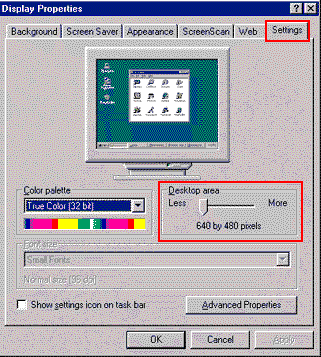
A. If you are using Windows® in 640 x 480 resolution then The Games Channel software will maximise to full screen. To view the task bar and other applications press the escape key (ESC). In all other resolutions the software will be self-contained within a Window.
To change your screen resolution, right click on the Windows® desktop and select PROPERTIES. You can then choose DISPLAY and change the settings there.
|
|
|
|
 |
|
Q. How do I create a profile? A. You should create a profile before you download the software. If you didn't do this you can
create a profile now.
Q. Can I update my profile at a later date? A. Yes, you can modify, create and view profiles via The Games Channel. To do this, either select the PROFILES button from the tool bar or or the PLAYERS PROFILES drop down menu.
Q. Can I create a profile for my children or other people within my family? A. Yes, one account covers the whole household (up to ten people). You can even create one for the dog, should you so wish!
|
|
|
|
 |
|
Are Tournaments planned for The Games Channel? A. Yes, we plan to add tournaments on a daily and weekly basis. The Tournament engine allows the co-ordination of the event, saving users from having to run around trying to find people to play against.
|
|
|
|
 |
|
Will people be able to kibitz (watch a game in progress)?
A. Yes, kibitzing will be added to The Games Channel shortly.
|
|
|
|
 |
|
Q. The other day I was playing Spades. The player to my right had bid Double Nil. On the last round I played a 2 of Spades and suddenly he said [Censored!}. What does this mean?
A. This means the player got very angry and used language that we have deemed unsuitable for a family-orientated Games Channel.
Please remember: Use of this type of language may result in termination of Games Channel privileges.
|
|
|
|
 |
|
Q. When will new games be added?
A. This depends on how long it takes the team of programmers to fix the existing games to a standard where everyone is happy with them. But new games will continue to be added as quickly as possible.
|
|
|
|
 |
|
The Games Channel is a site for all ages so please follow a few simple rules to keep this a friendly environment for all.
Swearing of any kind is not accepted. Please refrain from abusing other players. If you have a problem that you cannot resolve with another player, please report it to The Games Channel. Please try not to leave in the middle of a game unless it is unavoidable.
|
|
|
|
 |
|
Q. Other players say "Great sound effects" but I don't hear them.
A. It seems that some machines do not have the right software to playback some of our sound files. Specifically, you need to have a sound card capable of playing back 16-bit compressed WAV files.
Q. Other players say "Great music" but I don't hear this.
A. You must have a sound card compatible with MIDI (most of them are) and have midi/sequencer enabled (double click on the little loudspeaker on the start bar for volume options).
|
|
|
|