|
|
|
 |
 |
There are two ways to access Chat Rooms on The Games Channel.
Games Chat Lounge
This is the chat area available within each game's lobby or game board interface. A player automatically enters this chat area following selection of their chosen game. General Chat Lounge
This chat area can be entered by clicking on the Lounge button on the tool bar.

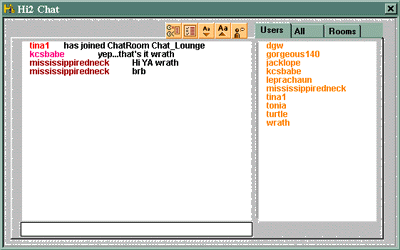
The Chat Lounge provide the following options and operate in an open environment:
 |
Ignore User
Should you not wish to communicate with another player, for whatever reason, you may use the IGNORE function by clicking on this icon and selecting the name of the player you wish to ignore.
|
 |
Chat Options
You may change your options including the colour of the typeface in which your name and comments appear by clicking this icon and selecting your preference from the colours listed.
|

 |
Change Font Size
If you wish to change the size of the font used, clicking on these icons will either increase or decrease the font size shown.
|
 |
Whisper
If you wish to send a private message to another user in the lounge, click on this icon, select the user's name and then send your message text. To return to normal chat mode, click on the LOUD icon.
|
 |
Loud
When you are in WHISPER mode, clicking on the LOUD icon will return you to the default setting in the lounge. Any comments you subsequently make will be viewed by all users currently in the lounge.
|
|
|
|
|
 |
|
The Games Channel supports the use of webcams. To access your webcam's images, click on the Communications drop down menu and select the View My Cam option:
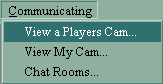
Should you wish to see another player's webcam images, select the View A Player's Cam option from the Communications menu, fill in the relevant search criteria and click GO.
|
|
|
|
|
|
|
|
|