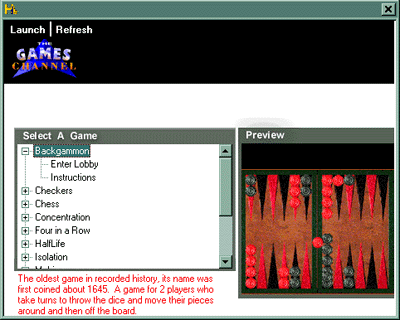
If the game selected from the menu tree is a single player game such as MahJongg, you will be taken straight to the Gaming Board Interface. If the game selected from the menu tree is a multi-player game, you will be taken to a LOBBY where you will meet other players wanting to play the same game. You can choose to chat to these players before selecting an opponent.
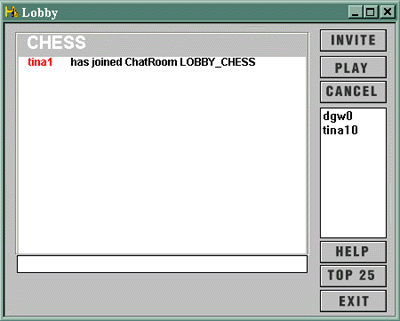
Click on the Invite button and select your opponent from those available.
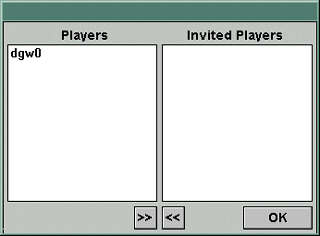
You will then be notified if and when your selected opponent has agreed to play and the game will then commence.
You can get back to the menu tree at any time by clicking on the Home button on the tool bar.

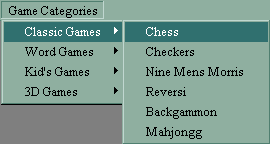
All The Games on The Games Channel fall into one of five categories: Classic, Cards, Word, Kids and 3-D games. Select The Games Categories menu in order to see where each game is categorised.
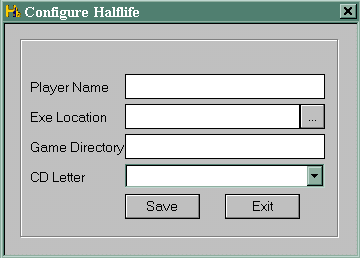
It is possible to play 3-D games in a multi-player environment through The Games Channel but only if these are supported by your ISP. However, you will need to purchase the game(s) separately from your usual retailer. When selecting to play a 3-D game such as Quake2 or Half Life, the following screen will appear. You will need to fill in your information and Save before play can commence.
Once you have successfully invited an opponent to play the game of your choice, you will be taken to the Gaming Board Interface. You will be assigned pieces, a side of the board etc before play begins.
The Gaming Board Interface contains six main areas as illustrated below.
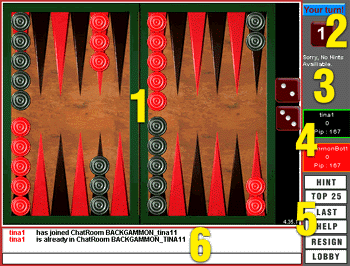
The Game Board - you will see your game board and be assigned pieces, a side of the board, etc.
The Turn Prompt - this feature keeps track of moves and will tell you when it is your turn to play.
The Hints Menu - click through a list of available hints covering the game you are currently playing. This area will also tell you how to move and other rules in addition to tips and strategies.
The Score - tracks the score of your game and will also track the number of games you play, allowing for "best of three" and "best of five" competitions.
Navigation Buttons - to activate different features of the Gaming Board.
Game Chat - allows you to chat with the other player(s), exchange strategies and communicate throughout the game. The arrow buttons allow you to scroll through your entire Chat session.
Navigation Buttons
There are six navigation buttons on the Gaming Board (area 5 on the above image). Each button has the following functionality:
Hint takes you through the available hints for the current game being played.
Top 25 shows you the Top 25 league table for your game. Compete for a place in one of many contests and tournaments.
Last shows you what the last move was, should you have missed it.
Help takes you directly to the help pages available covering the particular game in play.
Resign allows you to resign from the game before it has ended although this will result in the game being forfeited and your opponent will therefore have won the game.
Lobby takes you back to the Gaming Lobby.
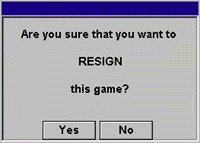
You will see this dialog box before resigning.